Chroma
Choose green, blue or black background and adjust intensity and saturation.

Now in beta for iPhone
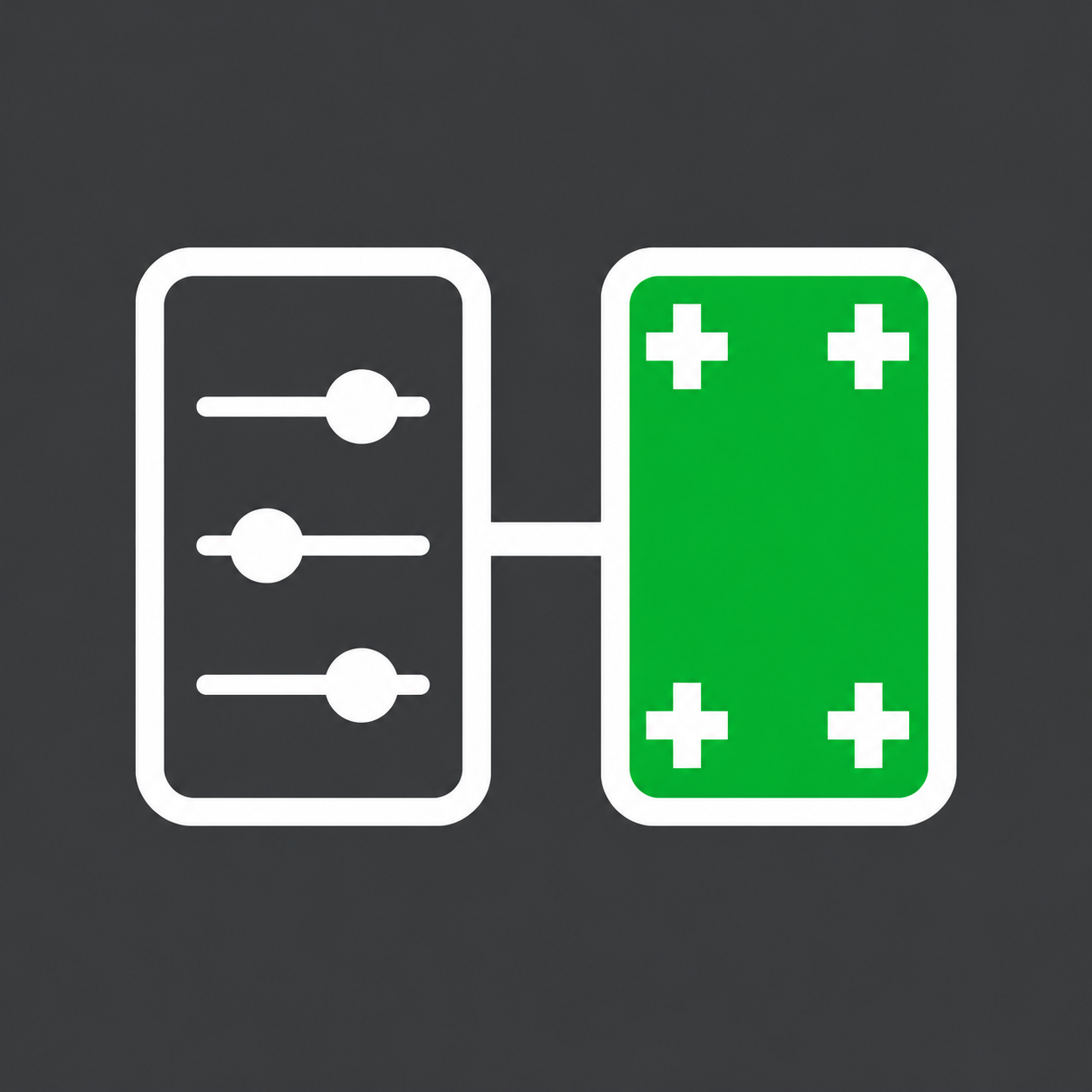
Prepare almost any phone, tablet or computer for filming in a few simple steps, with no app required on the on-camera device. Control chroma and tracking markers from your iPhone while talent scrolls, types and dials naturally.
Choose green, blue or black background and adjust intensity and saturation.
Choose a shape, size, spacing and opacity of the industry standard tracking markers.
Give your talent something to type or dial. Choose a language layout and adjust opacity, in portrait or landscape.
Markerful on your iPhone and a compatible browser on the device you want to film. Connect both to the same Wi-Fi or personal hotspot. No separate app download is needed on the on-camera device.
iPhone, iPad, Android phones and tablets, Mac and Windows computers can all serve as the on-camera screen through a compatible browser. Available screen area and full-screen behaviour depend on the device. See display considerations →
Yes. The connection between your devices works over local Wi-Fi or a personal hotspot, without internet access. Installing the TestFlight beta and receiving updates require an internet connection.
Yes. Choose Film to use your iPhone directly on camera. Choose Control when you want to adjust a second device remotely.
Yes. Use vertical or horizontal scrolling, Map mode for panning and zooming, or a keyboard and numpad for typing and dialling. A static screen is available too.
Markerful is currently in an invitation-only iPhone beta through TestFlight. Request beta access to take part. The on-camera device only needs a compatible browser. An Android Controller app is also in development.
Invitation-only beta on TestFlight